Log in as Web Hosting Administrator
This guide explains how to log in with the correct credentials to manage your websites.
Login via Customer Portal (via SSO)
To manage your web hosting contracts, you must first log in to the customer portal. Here you can view your contracts, download invoices, and submit support requests.
-
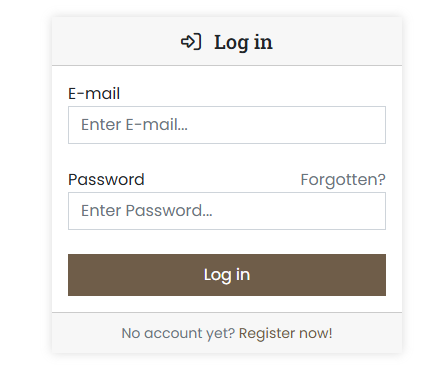
Log in to the customer portal at https://cp.servercow.de with your credentials:
-
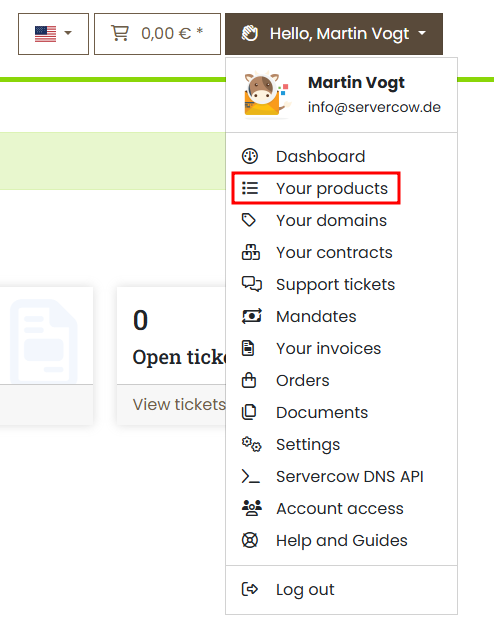
Once logged in, click the button with your customer name in the top right corner and select Your Products from the dropdown:
-
Search for your web hosting package in your product list and click the View button.
-
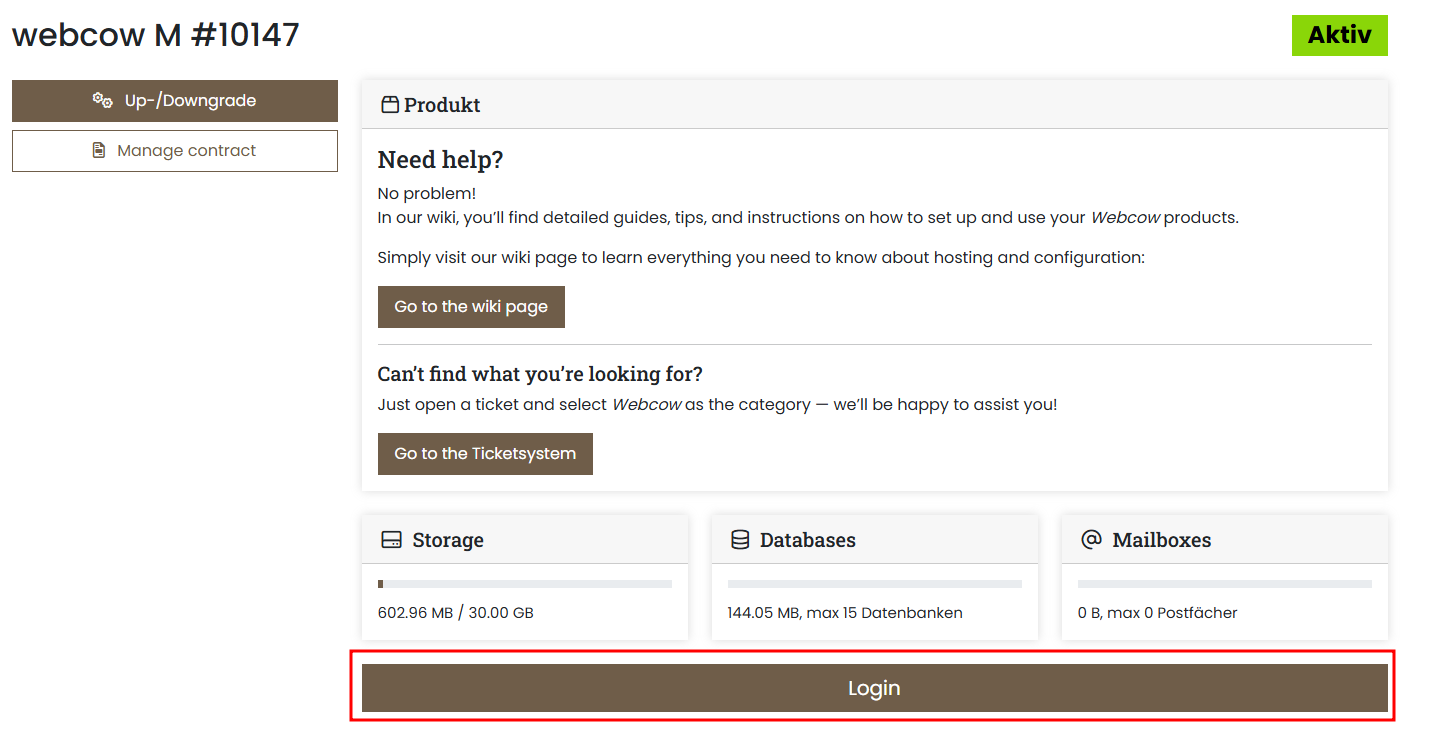
You will now see general status information about your web package retrieved from your assigned web server. Click the Login button to log in to the Web Hosting Admin via SSO:
-
After a moment, you will be automatically logged into the Web Hosting Admin where you can manage your websites.
Note
The SSO login via the customer portal gives you direct access to the Web Hosting Admin without requiring separate credentials. As long as you are logged into the customer portal, you can access the Web Hosting Admin anytime via the Login button.
Login via Web Server
Alternatively, you can log in directly to the Web Hosting Admin via the web server's login page. You will need the credentials that were sent to you by email during your web hosting package setup.
Important
You may not have received the Web Hosting Admin credentials or they may have been accidentally deleted. In this case, contact our support team to receive your credentials again.
-
Access the web server's login page. You will find the URL in the email you received from your web server. It typically has the following format: https://servername.web.servercow.de:8443, where "servername" is the name of your assigned web server.
-
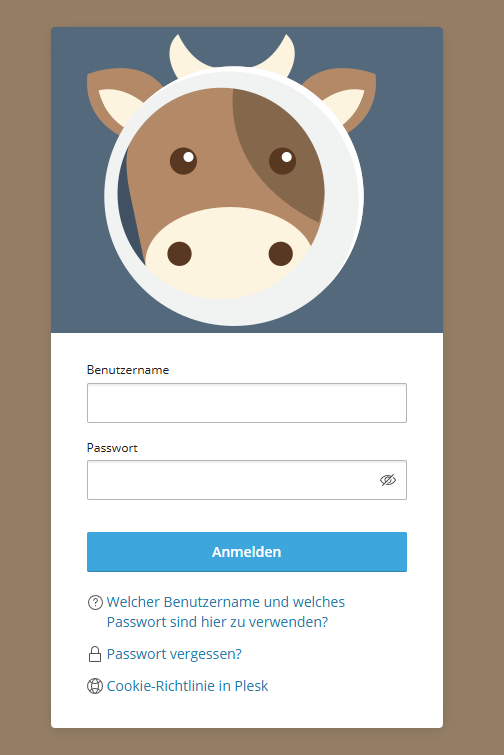
Enter your credentials:
Warning
You must enter the credentials you received from your assigned web server. They differ from the credentials you use for the customer portal.
-
Click the Log In button to log in as a Web Hosting Admin.
-
If everything works, you should now be logged in as a Web Hosting Admin and can manage your websites.