Manage Mandates
This is how you manage your mandates in the customer portal:
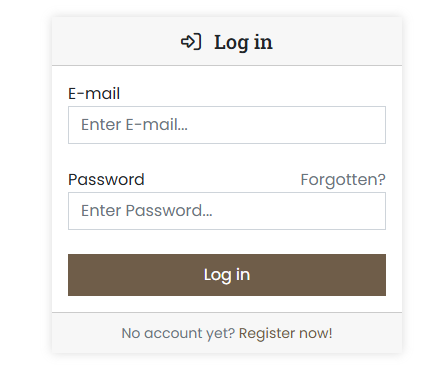
- Log in to the customer portal at https://cp.servercow.de using your credentials:
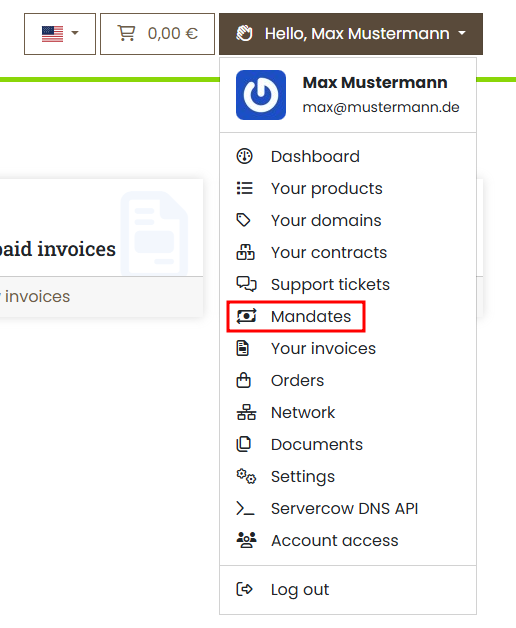
- Once logged in, click the button with your customer name in the top right and select Mandates from the dropdown:
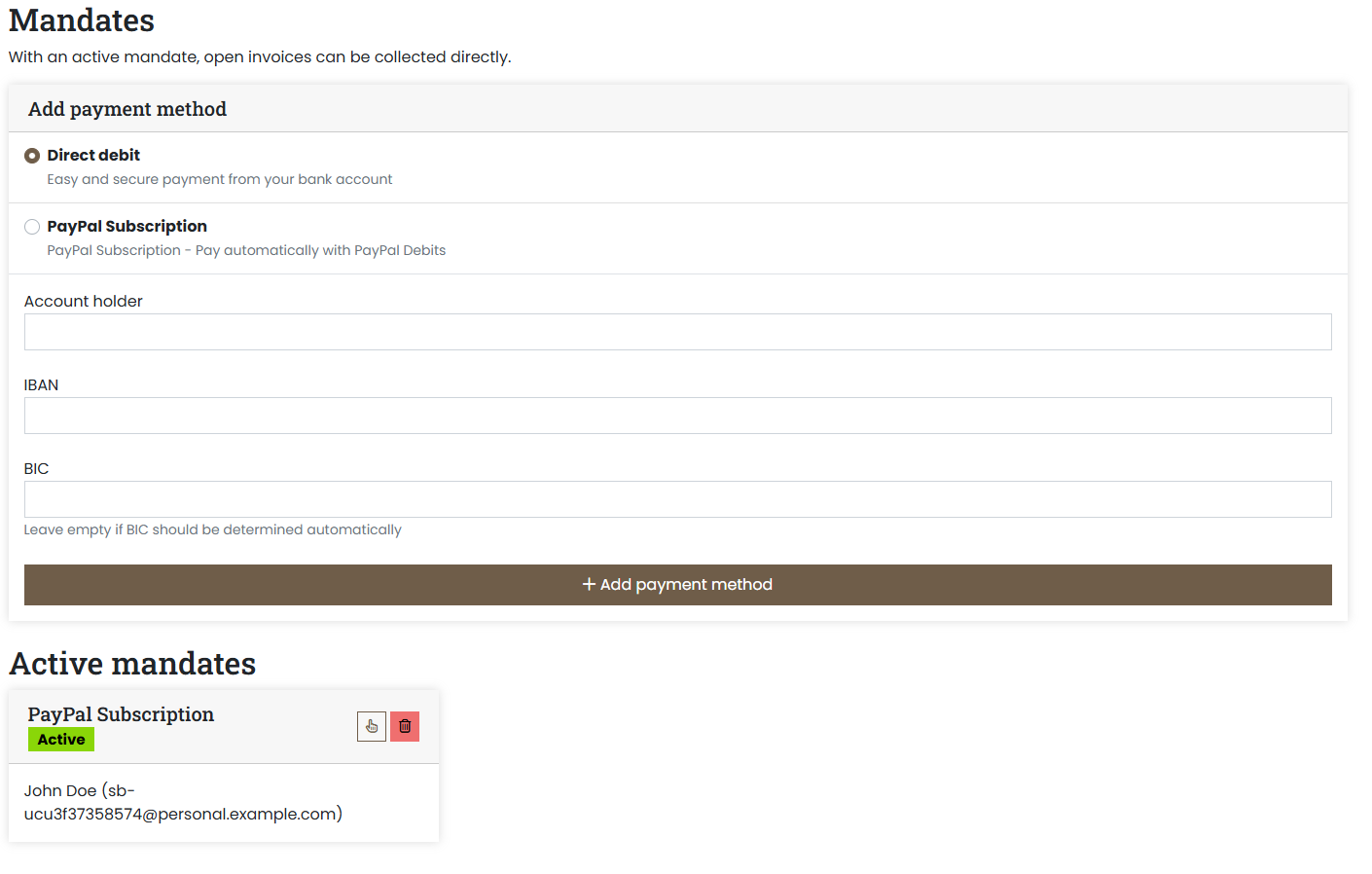
- You will now see an overview of your mandates. Here you can view existing mandates or add new ones:
-
Select a mandate type and fill in the required fields to create a new mandate:
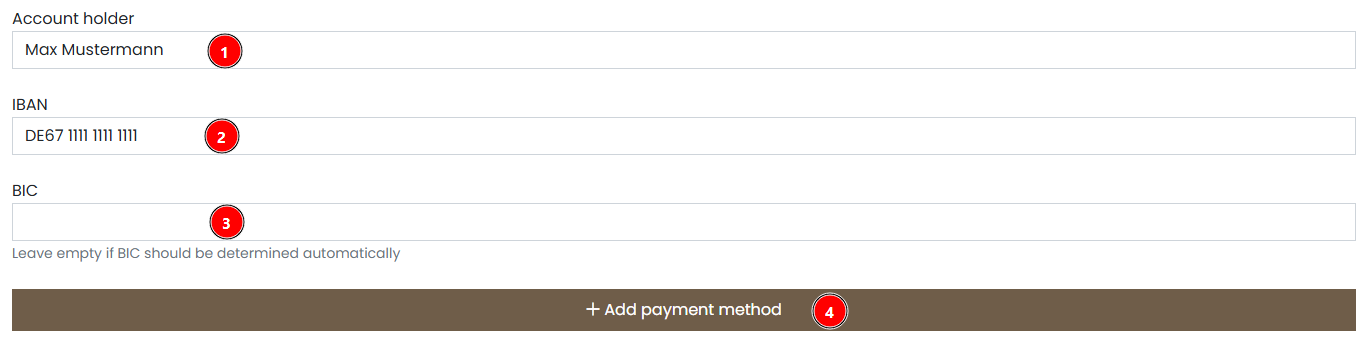
Enter the following information in the form:
- Account holder (name of the bank account holder)
- IBAN (International Bank Account Number)
- BIC (optional, leave empty if it should be determined automatically)
- Finally click Add payment method
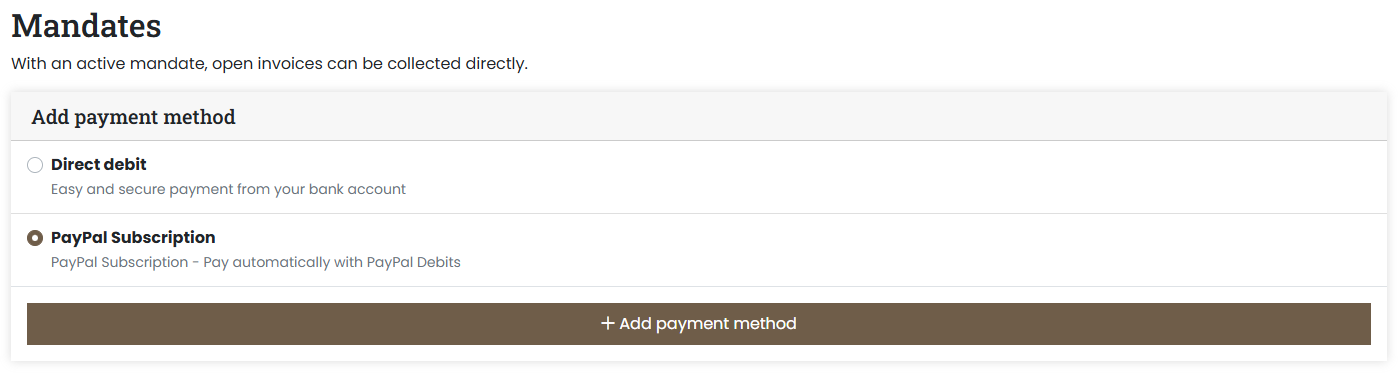
Once PayPal is selected, click Add payment method.
You will be redirected to PayPal to authorize the subscription payment.
Note
The following screenshots show the PayPal interface in the German language at the time this guide was created. The design may have changed since then.
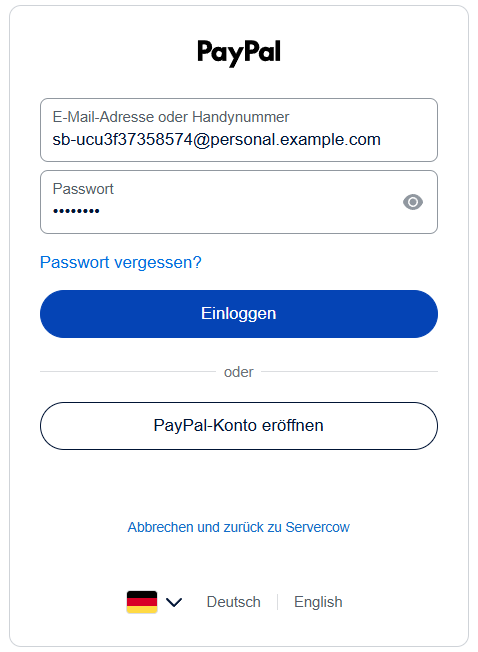
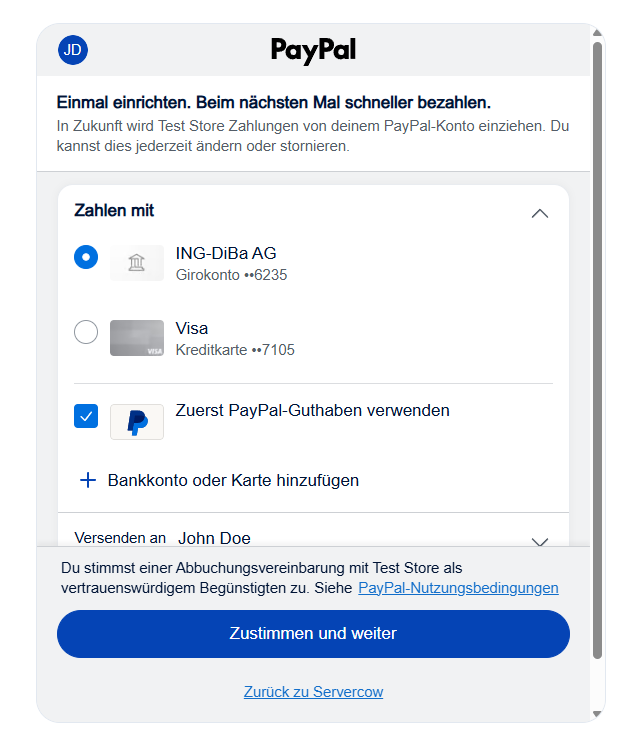
Once successfully authorized, you will be redirected back to the customer portal and the mandate will be set up.
-
(Optional) You can set a mandate as default by clicking the corresponding button next to the mandate; however, this only applies to new invoices. Invoices that have already been created will keep the payment method that was set at the time the invoice was created.